Why Does Instagram Open in Browser Instead of App?
TL;DR: This article explains why Instagram links open in a browser instead of the app, covering the deep linking system (Universal Links on iPhone, App Links on Android) that controls this behavior. It provides platform-specific fixes for iPhone and Android, addresses special cases like in-app browsers, shortened URLs, and email links, and includes last-resort troubleshooting steps.
You tap an Instagram link and instead of landing in the app, you’re staring at a clunky mobile website asking you to log in. It’s one of the most common and frustrating smartphone issues, and it happens for a very specific reason.
Your phone uses a system called deep linking to decide whether a URL should open in an app or in your browser. When deep linking breaks down — or was never set up correctly — your phone defaults to the browser. Below, we’ll explain exactly why this happens and walk you through every fix, whether you’re on iPhone or Android.
The Real Reason Instagram Links Open in Your Browser
Every time you tap a link, your phone makes a split-second decision: “Do I have an app that handles this URL?”
For Instagram links (like instagram.com/username), your phone should recognize that the Instagram app can handle them and open the app automatically. This system is called Universal Links on iPhone and App Links on Android.
When it stops working, it’s usually one of these causes:
- You long-pressed an Instagram link and chose “Open in Browser” once — on iPhone, this overrides the default and your phone remembers that choice going forward
- Instagram’s default link settings got reset — this happens after app updates, OS updates, or restoring from a backup
- Instagram isn’t installed — sounds obvious, but if you offloaded the app to save storage, links will open in the browser
- You’re tapping a link inside another app’s built-in browser — apps like Facebook, Twitter, and TikTok use in-app browsers that don’t always hand links off to other apps
- The link format is unusual — shortened URLs (like bit.ly links) or links with tracking parameters sometimes bypass deep linking entirely
How to Fix It on iPhone (iOS)
Fix 1: Reset the Universal Link Override
If you ever long-pressed an Instagram link and tapped “Open in Safari,” your iPhone remembers that preference. Here’s how to undo it:
- Find any Instagram link (in a text message, email, or Notes app)
- Long-press the link (don’t tap it)
- Look for “Open in Instagram” in the menu that appears
- Tap it — this resets your phone’s preference back to opening Instagram links in the app
This is the #1 fix that most people miss. Apple doesn’t make it obvious that a single long-press choice becomes your permanent default.
Fix 2: Use the Banner Redirect
If an Instagram link does open in Safari, look for a small banner at the very top of the page that says “Open in the Instagram app.” Tapping this banner will take you to the app and can also reset the deep link preference.
Fix 3: Reinstall Instagram
If the fixes above don’t work, the deep link registration may be corrupted. Reinstalling fixes this:
- Delete the Instagram app from your iPhone
- Restart your phone
- Reinstall Instagram from the App Store
- Log back in
When an app is freshly installed, iOS re-registers its Universal Links, which resets everything.
How to Fix It on Android
Fix 1: Set Instagram as the Default for Its Links
- Open your phone’s Settings
- Go to Apps (or Apps & notifications)
- Find and tap Instagram
- Tap Set as default (or Open by default)
- Turn on “Open supported links” and make sure it’s set to “Open in this app”
If you see a list of supported web addresses, make sure all the Instagram domains are checked.
Fix 2: Clear Browser Defaults
Sometimes Chrome or another browser has claimed Instagram links for itself. To fix this:
- Go to Settings > Apps
- Find your browser (Chrome, Samsung Internet, etc.)
- Tap Set as default
- Tap “Clear defaults”
This forces Android to re-evaluate which app should handle Instagram links.
Fix 3: Clear Instagram’s Cache
- Go to Settings > Apps > Instagram
- Tap Storage
- Tap Clear cache (not “Clear data” — that will log you out)
A Simpler Solution: Use TapClick.to for Instagram Profile Links
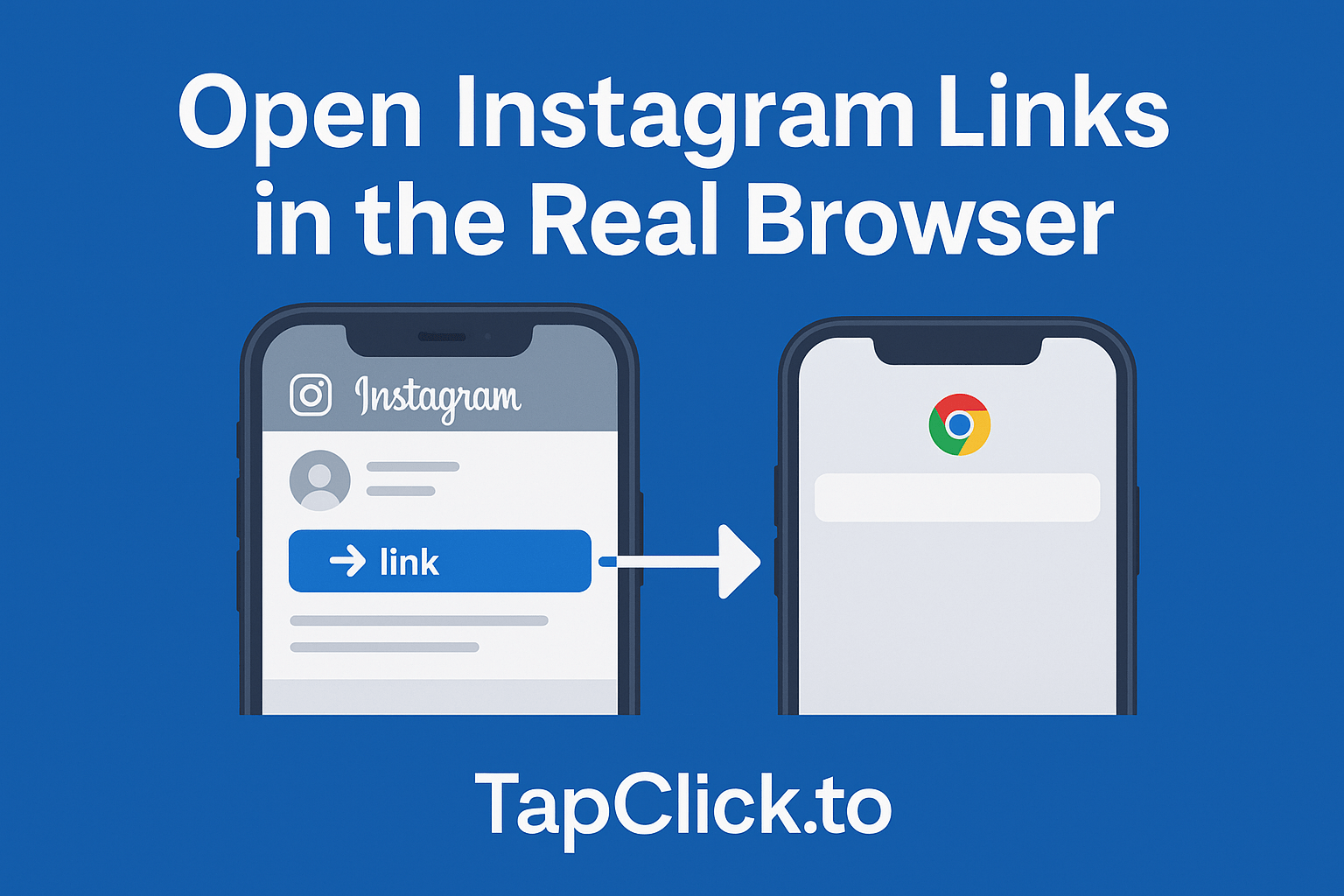
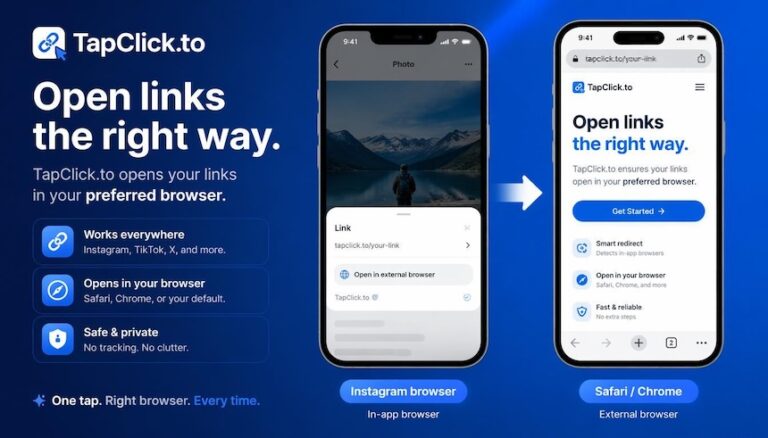
If you share your Instagram profile link on business cards, flyers, or other marketing materials, you can sidestep deep linking issues entirely. TapClick.to creates smart profile links that open directly in your phone’s native browser — not an in-app browser — giving your phone the best chance to recognize the Instagram URL and launch the app automatically.
Instead of printing instagram.com/yourusername on your card (which requires someone to type it manually) or using a QR code that might open in an in-app browser, a TapClick.to link handles the redirect cleanly. It’s especially useful for NFC business cards and tap-to-open scenarios where you want the smoothest possible path from tap to Instagram profile.
Special Cases
Instagram Links from Facebook, TikTok, or Twitter
Many social media apps use their own built-in browser instead of handing links to other apps. When you tap an Instagram link inside Facebook, for example, it often opens in Facebook’s in-app browser rather than the Instagram app.
The fix: look for a three-dot menu or share icon in the in-app browser, then select “Open in browser” or “Open in app.” Some apps (like Facebook) also have a setting to always open links in your default browser instead of the in-app one.
Instagram Links in Email
Email apps like Gmail and Outlook also have built-in browsers. If an Instagram link from an email opens in a browser, try copying the link and pasting it directly into your phone’s browser address bar — this gives your phone a fresh chance to recognize it as an Instagram link and redirect to the app.
Shortened or Tracked Links
Links that go through URL shorteners (like bit.ly or t.co) or marketing trackers add redirect steps between the tap and the final Instagram URL. Your phone can’t always detect that the final destination is Instagram until after the redirects resolve, by which point the browser is already open.
Unfortunately, there’s no user-side fix for this — it’s a limitation of how deep linking works with redirects. If you see the Instagram website load after tapping a shortened link, use the “Open in app” banner at the top of the page.
How to Change Instagram’s In-App Browser Settings
There’s a related but different issue: links that people send you inside Instagram Direct Messages open in Instagram’s own built-in browser. If you’d rather those links open in Safari or Chrome:
- Open Instagram and go to your Profile
- Tap the menu icon (three lines) in the top right
- Scroll down and tap App and website permissions
- Tap Links (or Message links)
- Toggle on “Open links in external browser”
This only affects links sent to you in DMs — it won’t change how Instagram links from other apps behave.
Still Not Working? Last Resort Options
If you’ve tried everything above and Instagram links still open in your browser:
- Update Instagram — outdated versions can have broken deep link configurations
- Update your phone’s OS — both iOS and Android have improved deep link handling in recent updates
- Check your content restrictions — if you have parental controls or Screen Time restrictions enabled, they can interfere with app link handling
- Reset all settings (last resort) — on iPhone, go to Settings > General > Transfer or Reset iPhone > Reset > Reset All Settings. This resets all preferences without deleting your data, and it forces iOS to re-register all app links
The Bottom Line
Instagram opening in your browser instead of the app is almost always a deep linking issue — your phone has lost track of which app should handle Instagram URLs. On iPhone, the most common culprit is accidentally choosing “Open in Safari” from a long-press menu. On Android, it’s usually a missing default app setting. Both are quick fixes once you know where to look.